
TL;DR: ThinkorSwim does not automatically receive Moby Tick dark pool levels. In about 10 minutes, you can review large or repeated prints in Moby Tick, choose a short list of useful price references, and manually plot them as horizontal lines in TOS. You can then create drawing alerts at selected levels. The line marks where trades executed, not confirmed buying, selling, or institutional intent.
Estimated reading time: 6 minutes
If ThinkorSwim is already where you analyze price, you don’t need to replace your charts to use dark pool data. Keep your existing chart layout. Use Moby Tick’s Print Lookup to review historical prints, filter for the activity you care about, and transfer a few relevant prices into TOS with its drawing tools.
This is a manual workflow, not a native data feed or automatic chart integration. The point is to add a concise set of institutional trading activity references to the chart you already use, without cluttering it with every print.
What a dark pool level is, and isn’t
A dark pool level is a price where one or more large off-exchange trades executed. When prints occur near the same price, that price area may be worth monitoring alongside your usual chart analysis.
It is not proof that institutions bought or sold with a particular goal. A print records a trade at a price and size. By itself, it does not reveal directional intent, conviction, or whether that price will act as support or resistance in the future.
Use “institutional support and resistance levels” as a shorthand for potential reference areas to observe, not guaranteed barriers or signals. Price response, current market conditions, and your own rules still matter.
10-minute setup: from Print Lookup to a TOS chart
1. Choose one ticker and open the right chart: 1 minute
Start with a symbol you already follow. Open its chart in ThinkorSwim and use the timeframe and chart style you normally trade. Keeping your chart setup familiar makes it easier to compare these reference levels with your existing analysis.
In a separate browser tab, open Moby Tick’s Print Lookup and search for the same symbol.
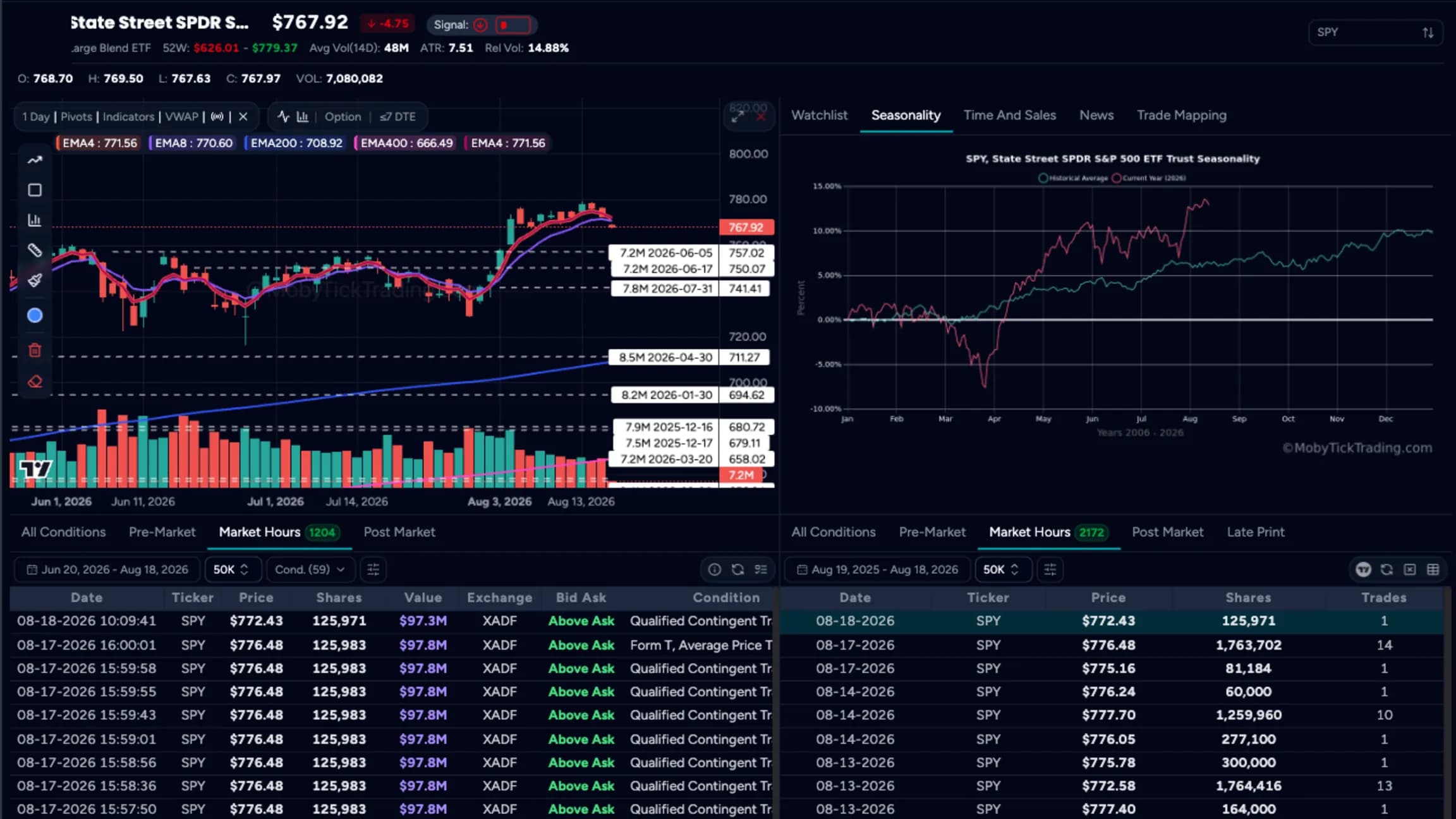
2. Filter out prints you don’t need: 2 minutes
Print Lookup includes customizable filters for trade size and date range, and lets you view activity across multiple timeframes. Start with a period that suits your plan: a shorter window for a day-trading map, or a longer one if you’re preparing swing-trade context.
Then narrow your review:
- Focus on larger prints relative to the activity you’re examining.
- Look for several prints at similar prices rather than treating every isolated print as equally important.
- Note whether activity at a price is recent or older.
- Record the ticker, exact price, date, and size for each candidate.
There is no universal share-size cutoff that makes a print important for every stock. Choose a threshold that fits the symbol and your workflow. The goal is a short, readable shortlist, not a chart covered in lines.

3. Decide which prices deserve a line: 2 minutes
Prioritize levels with a clear reason for keeping them on screen. A price where multiple large prints cluster may be more useful to track than a single isolated print; a recent print may be more relevant to your current plan than a much older one. These are selection criteria, not predictions.
If several prints sit close together, consider whether they form a zone rather than several separate levels. Use the exact prices in your notes, then draw only the most useful central or boundary reference on the TOS chart. Avoid rounding away meaningful price precision.
Keep a simple note outside the chart if you want to preserve the supporting context: for example, “multiple prints near this area” or “older, single large print.” That helps you remember why the line is there without treating it as a signal.
4. Add a Price Level in ThinkorSwim: 2 minutes
In ThinkorSwim desktop:
- Open Charts and load the ticker.
- Open Drawings or Drawing Tools, then select Price Level.
- Place the horizontal line near the candidate price.
- Right-click the line and choose its properties to adjust the price and display options.
- Give the line a clear label, such as
DP reference: [date], and choose a color that won’t be confused with your existing indicators.
ThinkorSwim’s Price Level reference describes its horizontal price line and display settings. Interface labels can vary by platform version. If you’re unfamiliar with the drawing tools, Schwab’s guide to basic thinkorswim chart drawing tools is a useful companion.

5. Add alerts and save a clean map: 3 minutes
To monitor a selected line, right-click it and look for Create alert with drawing. Choose the crossing condition you want, such as crossing above or below, and set the alert details. ThinkorSwim’s Drawing Alerts documentation explains how drawing alerts work and notes that availability depends on chart and drawing conditions.
You can also use a TOS watchlist to keep the ticker visible and set a price alert for a level you’re monitoring. A watchlist alert is a separate TOS alert workflow; neither it nor a drawing alert creates a connection to Moby Tick.
Before you finish, check that your lines are readable and that alerts are set only where you want a notification. Save or preserve your drawing set if you plan to reuse the map. At the next review, reassess older lines instead of letting stale references accumulate.
Make the workflow repeatable
The Moby Tick Interactive Dashboard and Block Trade Indicator can help you review reported trade activity and identify names for further chart analysis. Use Print Lookup to investigate historical prices, then bring only selected references into TOS. This keeps each tool in its lane: Moby Tick for reviewing prints, ThinkorSwim for your charts, manual drawings, and alerts.
A practical rule: plot fewer levels, label them clearly, and revisit them regularly. A chart full of old lines makes it harder to see the price action you’re actually trading.
10-minute checklist
- Open the same ticker in Moby Tick Print Lookup and ThinkorSwim.
- Choose a date range and size filter relevant to your trading timeframe.
- Identify large prints, nearby clusters, or repeated prices.
- Record exact prices, dates, and sizes for your shortlist.
- Treat each price as a trade reference, not proof of buying, selling, or intent.
- Add only selected horizontal Price Level lines in TOS.
- Label levels so you can identify their source and age.
- Create drawing or price alerts only where useful.
- Review and remove or update stale lines.
FAQ
Does ThinkorSwim import Moby Tick dark pool levels automatically?
No. This workflow uses manual plotting with ThinkorSwim’s drawing tools. It is not a native direct feed or automatic Moby Tick integration.
Do repeated prints make a price guaranteed support or resistance?
No. Repeated executions can make a price area worth monitoring, but they don’t guarantee how price will react. A print is evidence of a completed trade at a price and size, not a forecast.
Should I plot every print?
Usually not. Filter first. A small number of relevant, well-labeled lines is easier to use than a chart crowded with every historical execution.
Can I get an alert when price reaches a level?
ThinkorSwim supports drawing alerts for eligible chart drawings and conditions. You can also set a price alert through your TOS workflow. Check the platform’s current alert settings and limitations.
Educational content only. This article is not financial advice or a recommendation to buy or sell any security.