Account
Settings
Open Settings from the avatar menu. It has four sections.
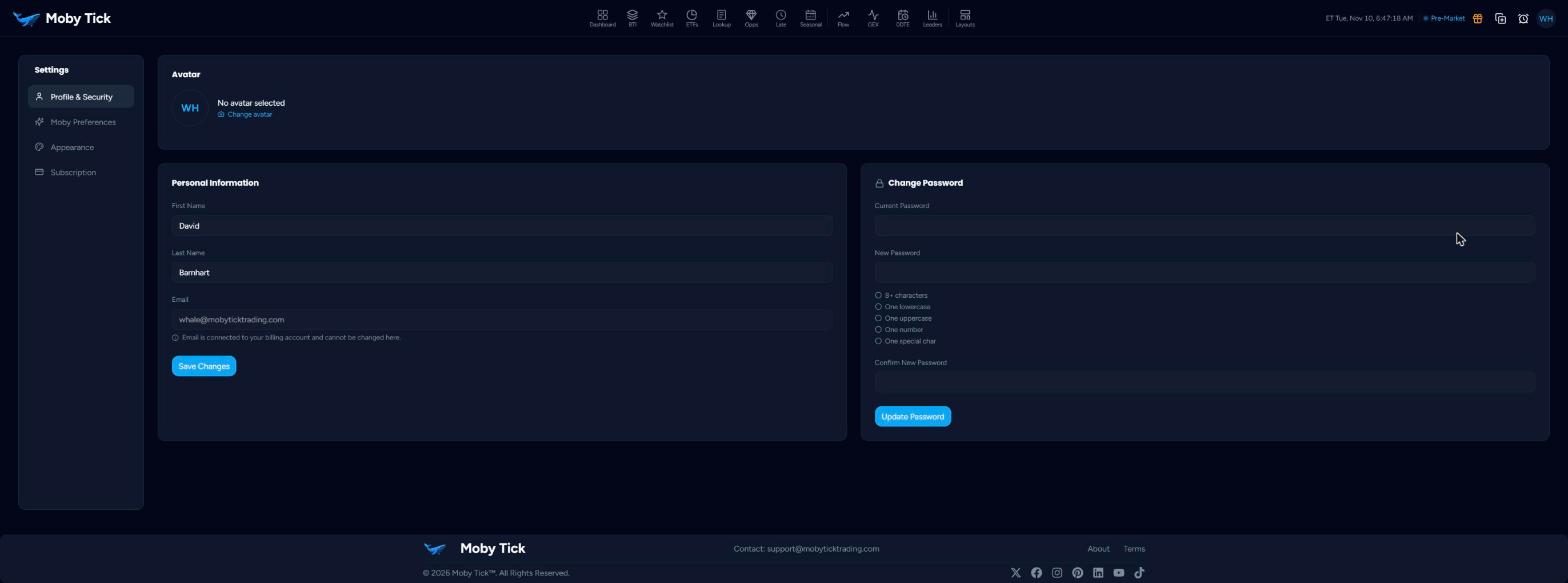
Profile & Security
Change your avatar, first name and last name, then click Save Changes. Your email is tied to your billing account and cannot be changed here; email support to change it. To change your password, enter your current password and a new one with at least 8 characters, a lowercase letter, an uppercase letter, a number and a special character, confirm it and click Update Password.
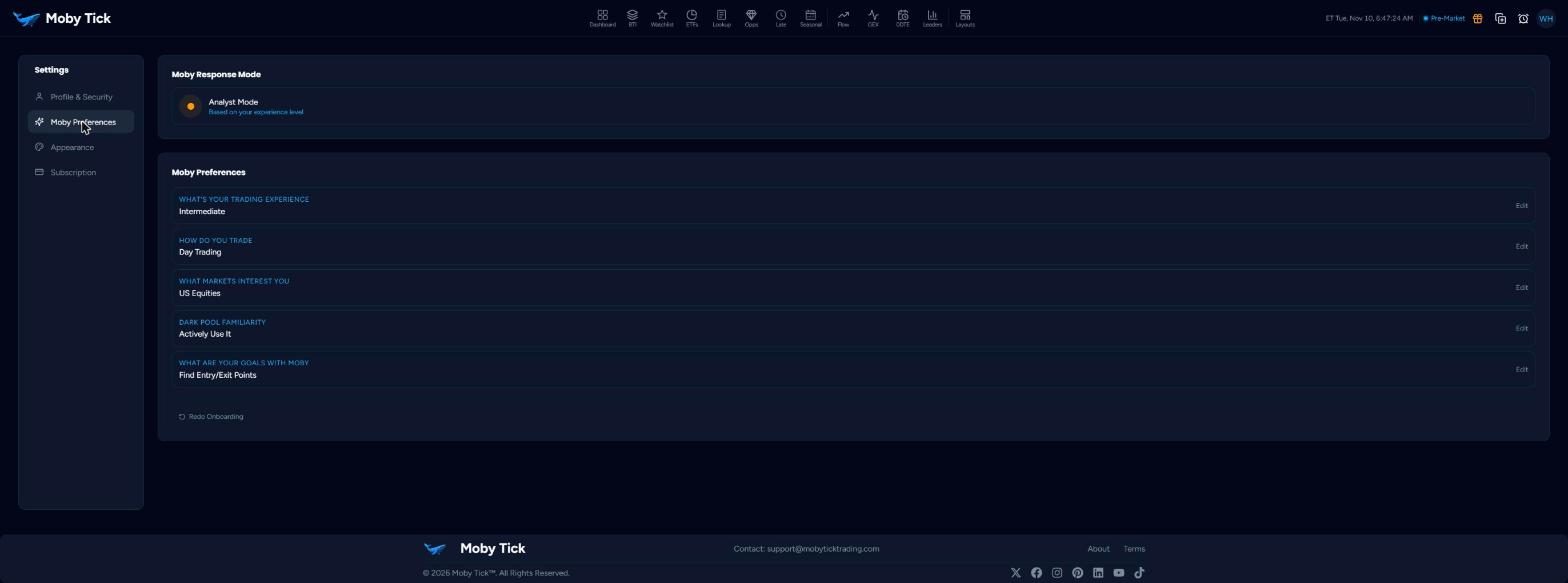
Moby Preferences
Your onboarding answers: trading experience (Beginner, Intermediate, Advanced, Professional), how you trade, markets, dark pool familiarity and goals. Moby uses them to set its response mode, such as Analyst Mode, and to adjust how it explains things. Click Edit on any answer, or Redo Onboarding.
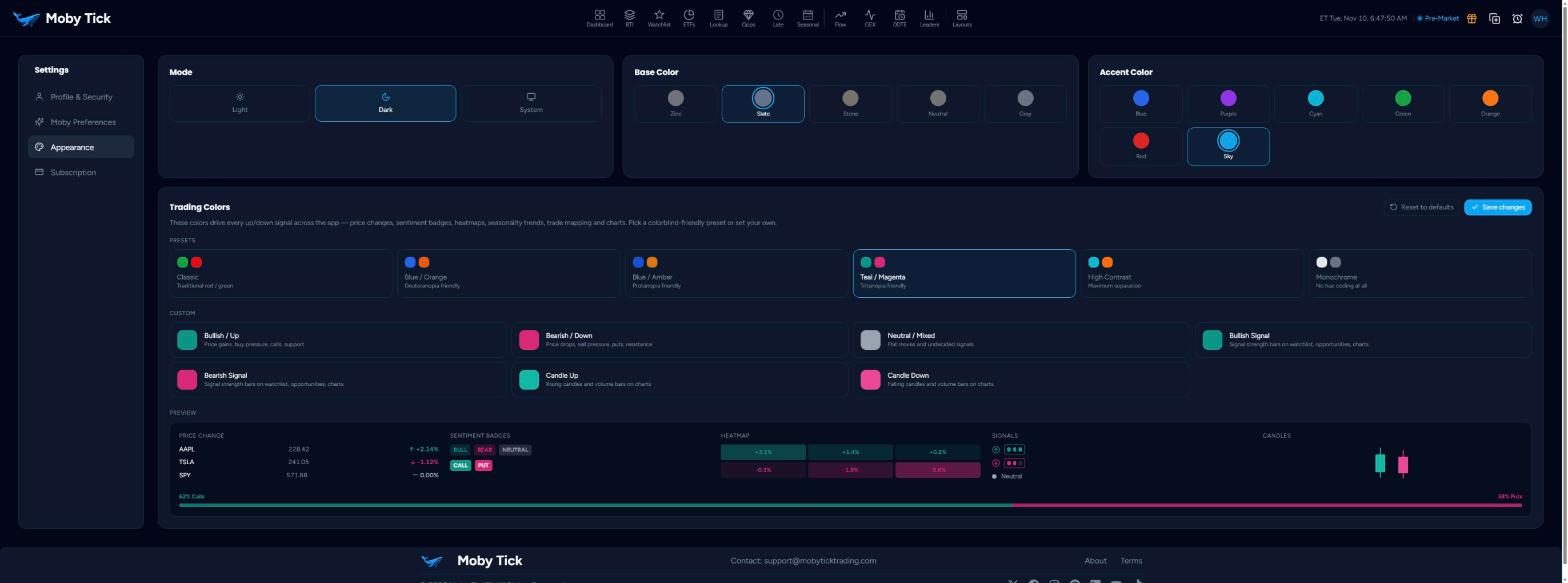
Appearance
Mode: Light, Dark or System. Base Color: Zinc, Slate, Stone, Neutral or Gray. Accent Color: Blue, Purple, Cyan, Green, Orange, Red or Sky.
Trading Colors drive every up/down signal in the app: price changes, sentiment badges, heatmaps, seasonality, trade mapping and charts. Pick a preset or set your own, check the Preview, then click Save changes.
| Preset | Best for |
|---|---|
| Classic | Traditional red and green. |
| Blue / Orange | Deuteranopia (red-green, green-weak). |
| Blue / Amber | Protanopia (red-green, red-weak). |
| Teal / Magenta | Tritanopia (blue-yellow). |
| High Contrast | Maximum separation. |
| Monochrome | No colour coding. |
Custom colours: Bullish/Up, Bearish/Down, Neutral/Mixed, Bullish Signal, Bearish Signal, Candle Up and Candle Down. Reset to defaults restores the originals.
Base colour, accent colour and mode are also in the avatar menu for quick changes.